🆚 Compare
The Compare section is the final step in the InForm workflow.
It is designed to support focused evaluation and decision-making by enabling side-by-side comparison of a small number of shortlisted design options.
This section becomes available after at least two presets have been created in either the Generate or Explore sections.
Purpose of the Compare Section
While Explore is used to understand the overall design space, Compare is used to:
- Narrow down the solution space to a few preferred options
- Evaluate alternatives in a structured and transparent way
- Compare performance metrics and design characteristics side-by-side
- Support internal alignment and external communication with stakeholders
Compare shifts the focus from exploration to evaluation.
Presets as Comparable Design Options
Only presets appear in the Compare section.
A preset represents:
- A specific configuration of input parameters
- A corresponding set of outputs and performance metrics
- A saved design state considered relevant or promising
Presets can be created:
- In Generate, during manual exploration
- In Explore, after filtering and analysing variants
Once at least two presets exist, the Compare section becomes accessible.
Compare Interface Overview
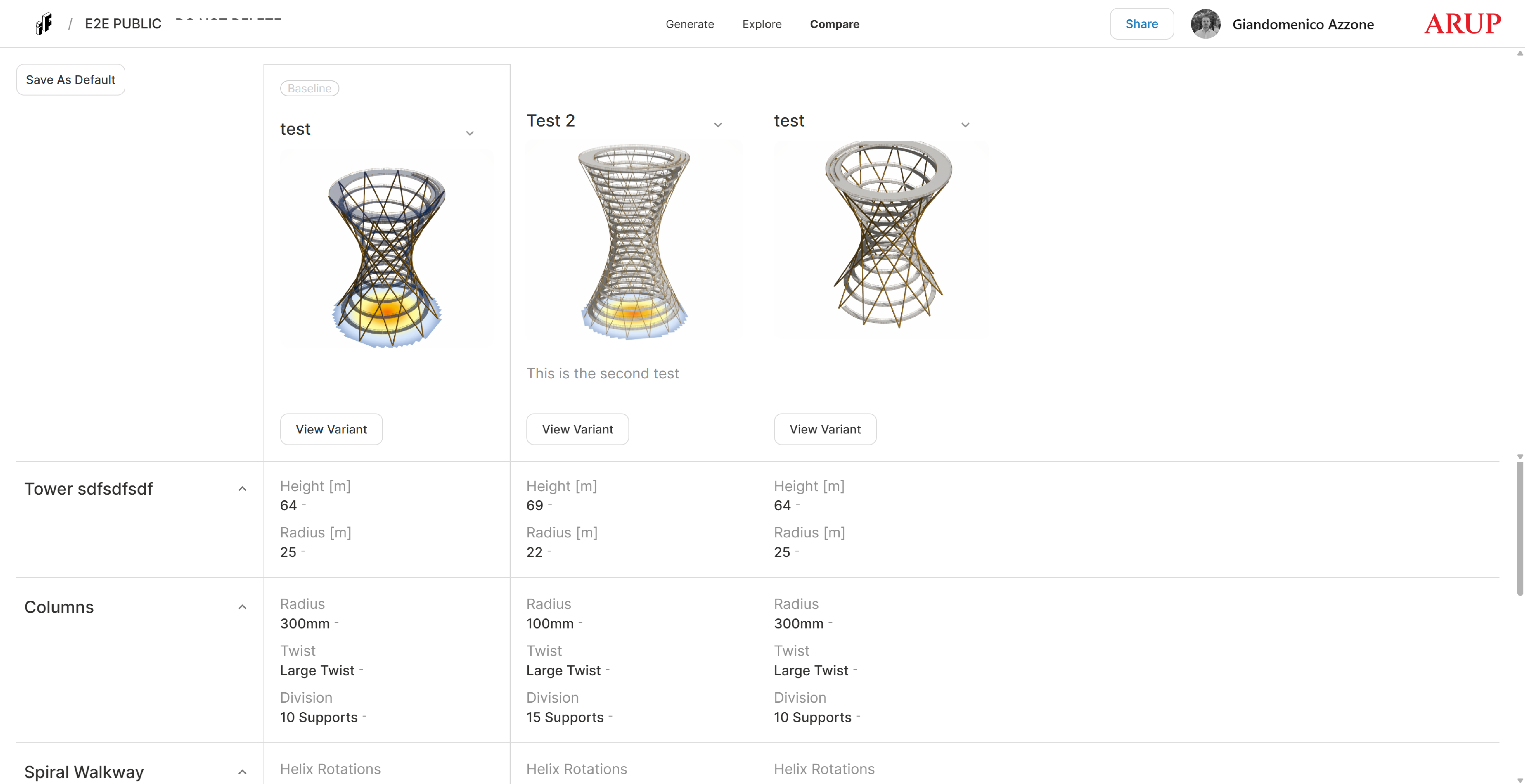
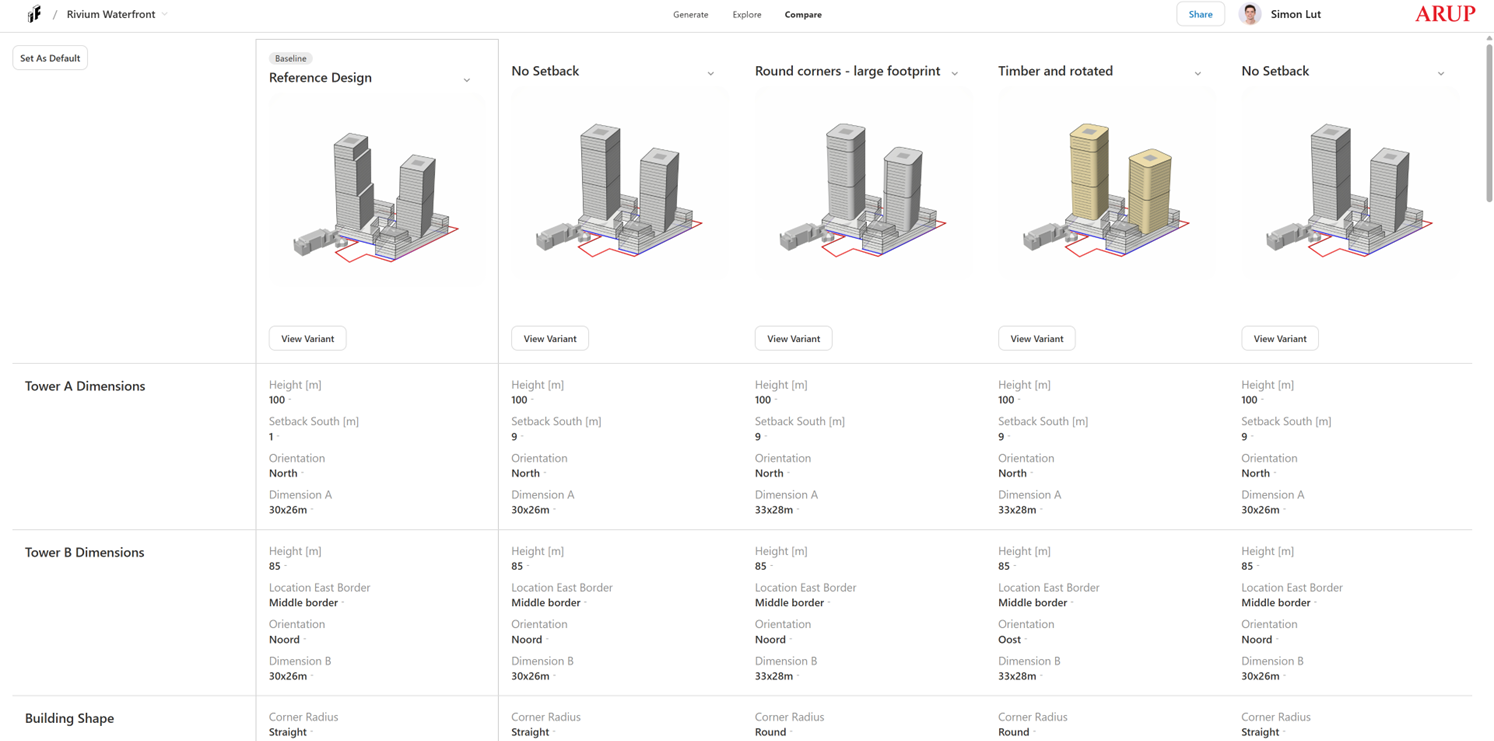
The Compare interface presents presets in a structured layout, allowing direct visual and numerical comparison.
Each preset is displayed consistently, making differences and similarities immediately visible.
Side-by-Side Analysis
Within Compare, users can:
- View multiple presets next to each other
- Compare input values, outputs, and KPIs
- Identify trade-offs between alternatives
- Highlight strengths and weaknesses of each option
This layout removes the need to switch back and forth between variants and supports clearer reasoning.
Side-by-side comparison example (placeholder):
Supporting Design Decisions
The Compare section is particularly useful when:
- Preparing recommendations for project teams
- Aligning internally on preferred options
- Communicating design choices to clients or stakeholders
- Justifying decisions using transparent, data-driven evidence
Because presets are stable snapshots of the model, comparisons remain consistent and reproducible.
Relationship with Generate and Explore
The three sections are tightly connected:
- Generate – creates and tests individual variants
- Explore – analyses and filters the full set of variants
- Compare – evaluates a small number of selected presets
Compare does not generate new variants; it consolidates knowledge gained from the earlier stages.
Typical Workflow Using Compare
- Generate multiple design variants
- Filter and analyse them in Explore
- Save the most relevant options as presets
- Open Compare to evaluate presets side-by-side
- Use insights from Compare to support final decisions
Notes
- Compare requires at least two presets
- Changes to the Grasshopper model may invalidate existing presets
- Presets should be recreated after significant model updates to ensure consistency