Step 1: Try the Simple Example Script
Let's start by opening a working reference script. This will help you understand InForm's capabilities before connecting to the platform.
1.1 Download the Example Script
Download the simple example script to get started:
📥 Download Simple Example Script
This lightweight script is designed as a first step before building custom models. It shows what you need as a minimum to get started.
1.2 Open the Script in Grasshopper
- Ensure Rhinoceros and Grasshopper are open
- Drag and drop the
.ghfile onto the Grasshopper canvas - The script will open automatically
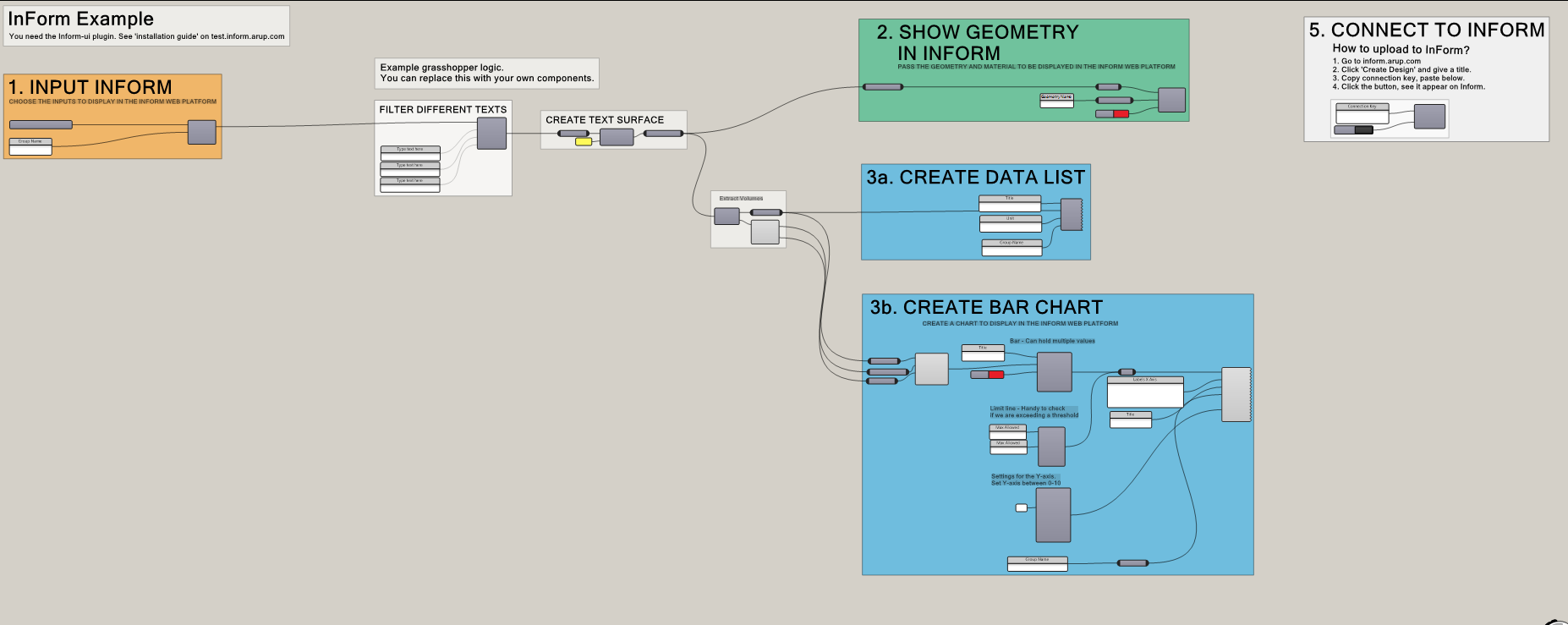
1.3 What This Script Demonstrates
A grasshopper script needs three types of components from the InForm-UI library to make it InForm ready!
In the example script, these components are used:
1. Input - What parameter can the user change?
- The Dropdown component in the script is configured to switch between texts.
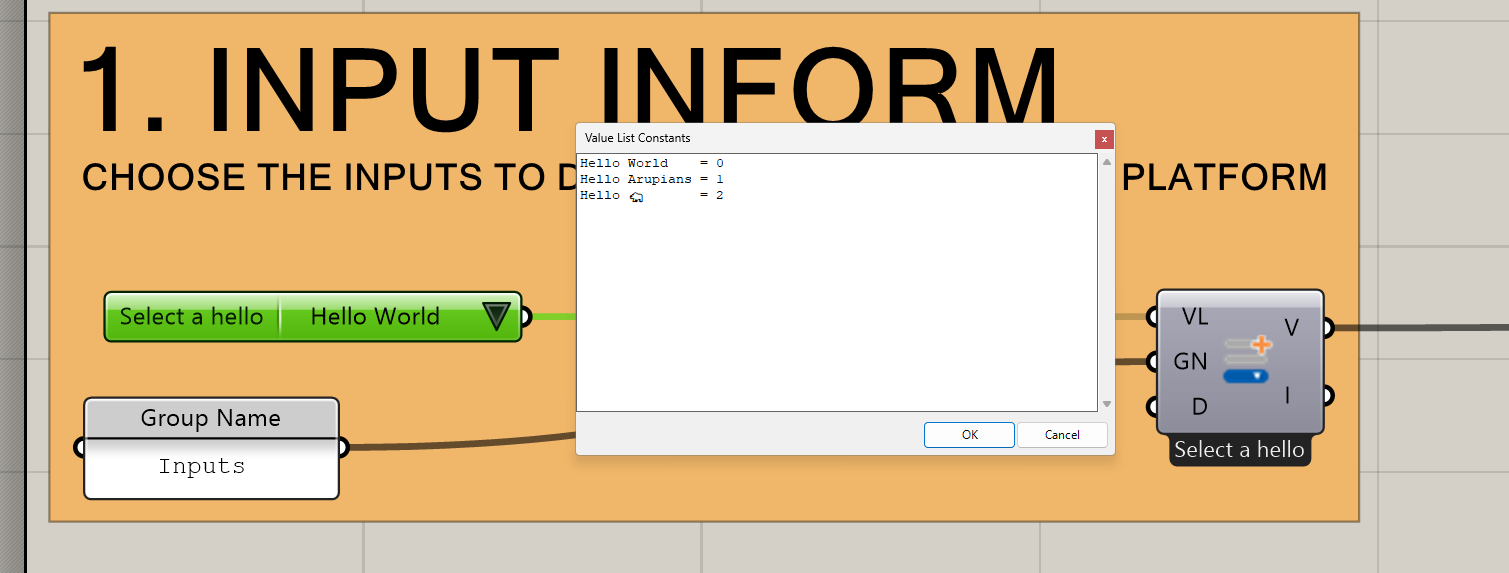
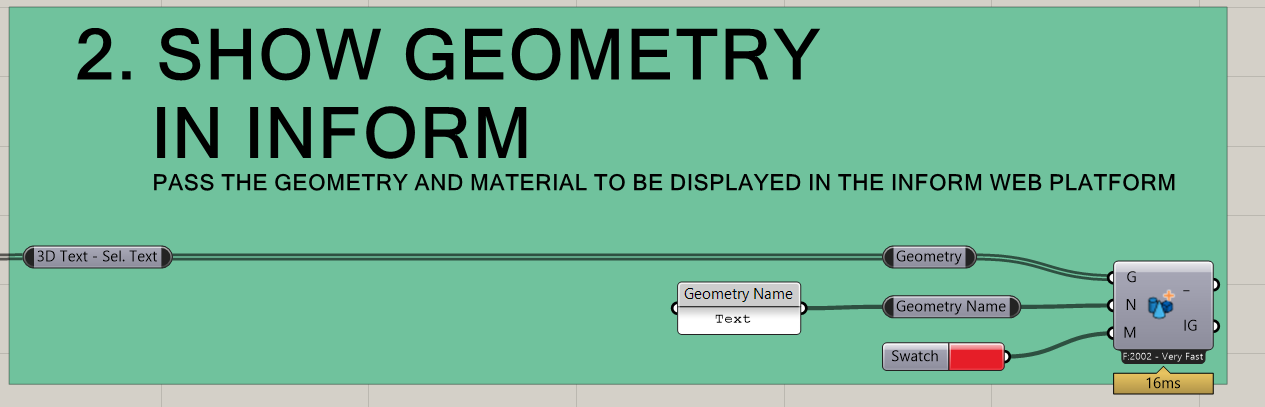
2. Geometry - What geometry is visualized for each variant?
- The Geometry Layer component sends Rhino geometry to InForm.
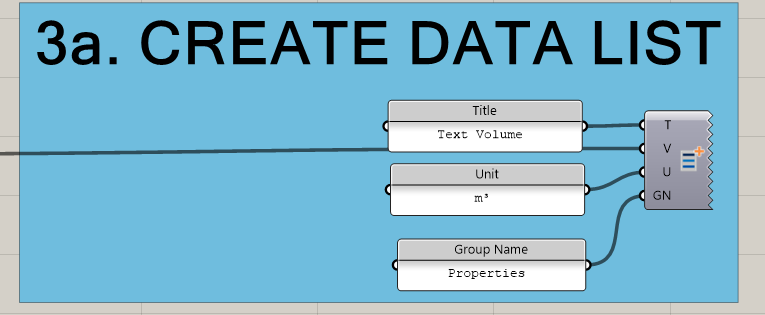
3. Chart - What data is visualized on the platform?
- The Bar Chart displaying data based on selected geometry
Troubleshooting
Script won't open
- Ensure you have the latest InForm plugin installed
- Check that all components are recognized (no red/orange warnings)
- Verify Rhino 8 is running
Components are red or disabled
- Some external plugins may be required
- Check Supported Plugins for compatibility
- Install any missing dependencies
Missing components
- Verify InForm plugin is properly installed
- Restart Grasshopper if components don't appear
- Check Installation Guide if issues persist
Next Step
Now that you have the example script open, let's connect it to the InForm platform.