Step 3: Add a Component
With your script connected to the InForm platform, let’s add one more component so you can see how changes in Grasshopper appear on the web UI.
3.1 Add an Input Component (Slider)
Let's add some spice and make the depth of the text variable.
- In Grasshopper, locate the InForm UI components panel.
- Drag a Slider input component onto the canvas.

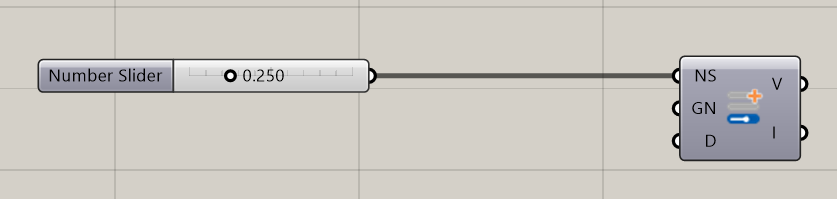
- Add a number slider and connect to the Slider component.
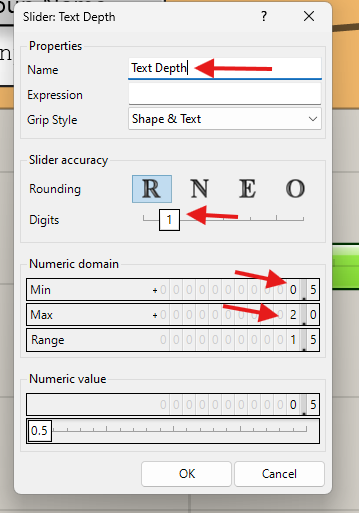
- Change the number slider properties to go between 0.5 and 2.0 by double clicking on the slider. Also give it a name.
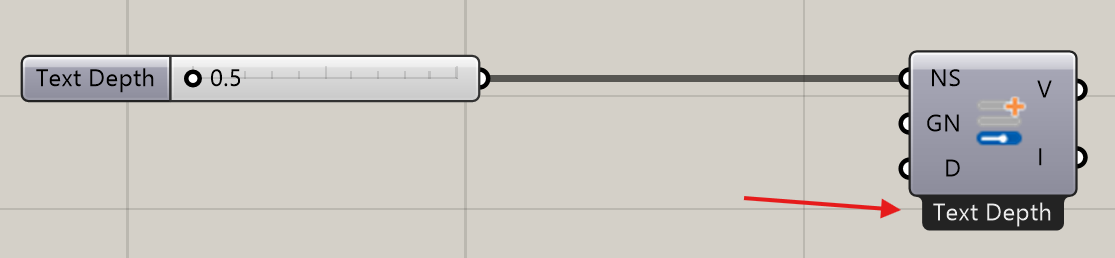
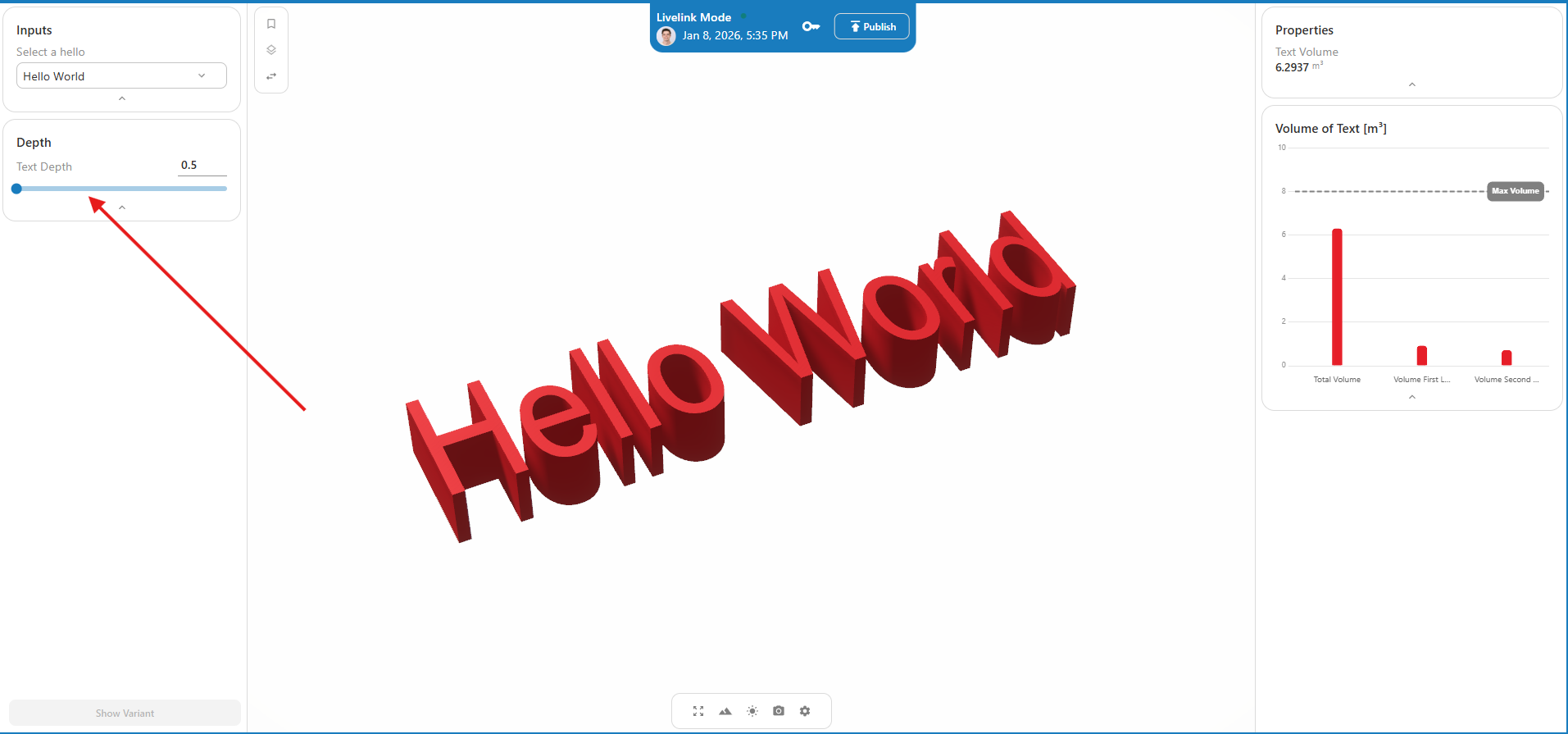
- You can now see the name appear below the slider component. This indicates that it works.
- Let's add a new group:
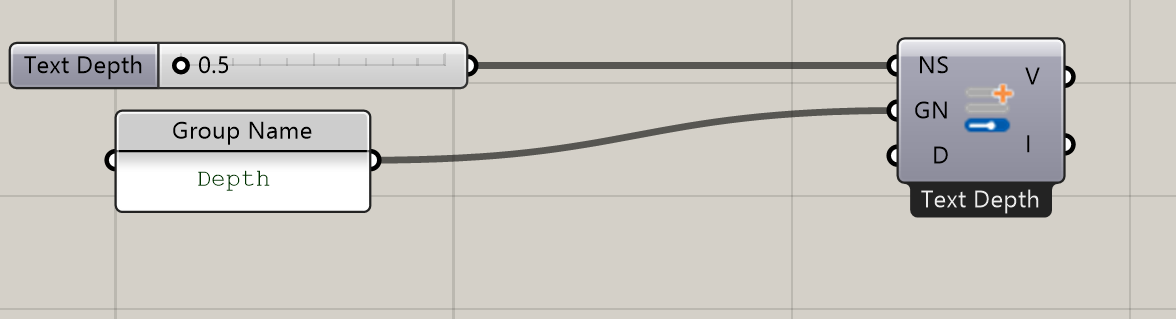
- Connect the new input to the variable we want to change! In this case the 'depth' input in the text surface.
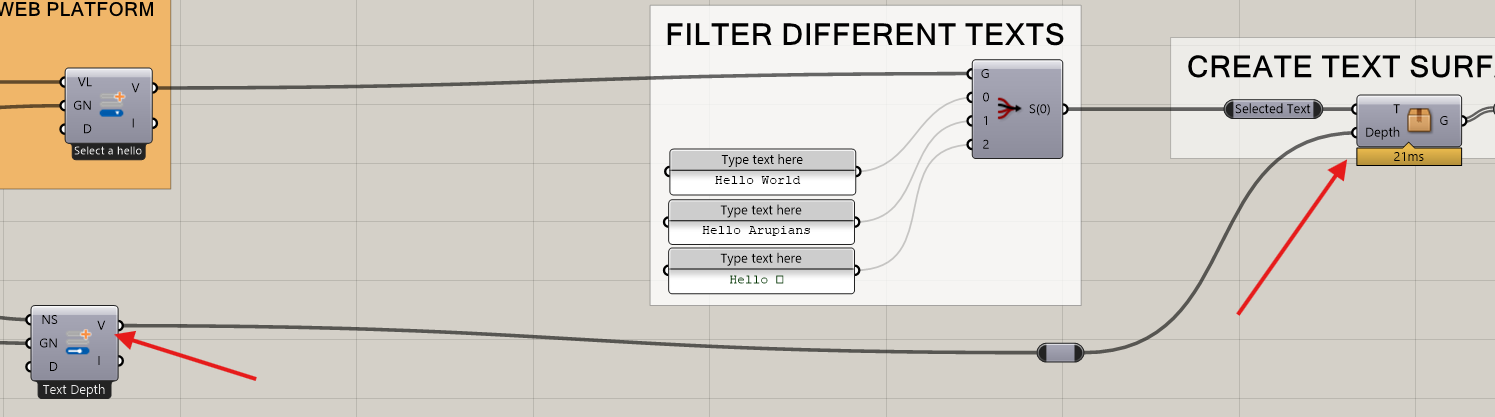
3.2 Update InForm
DONE ✅✅✅✅✅✅
Now let's see the new changes directly in InForm.
- Hit the send button again (no need to copy a new key). And see the changes!
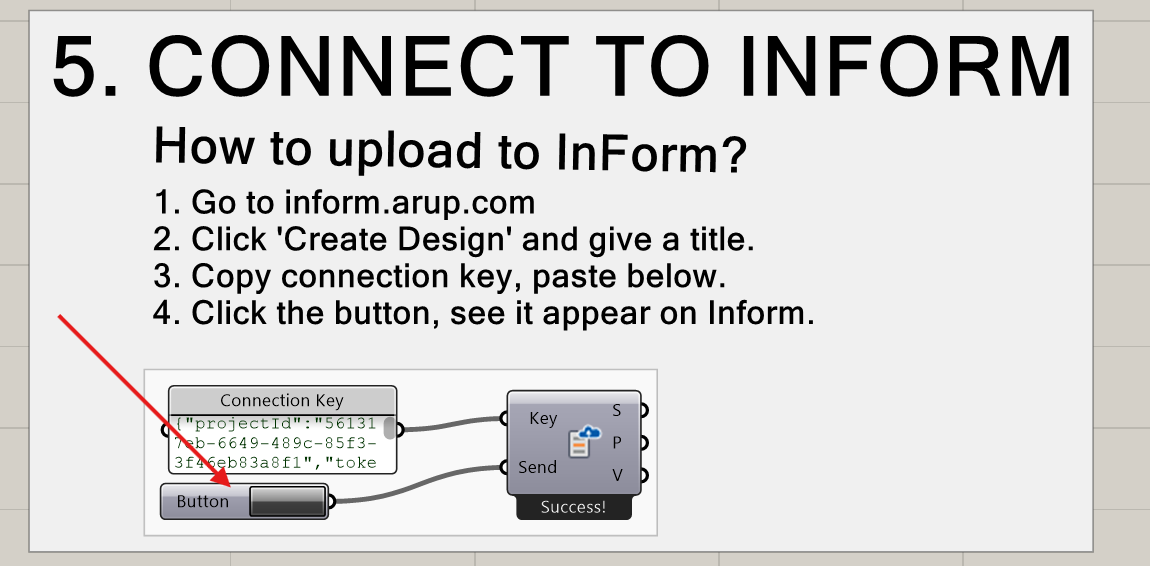
- Test it by changing the slider and hitting submit!
Tips & troubleshooting
- Did your key expire? Get a new one by clicking on the key icon next to the publish button in the blue ribbon.
- Sliders do not support Expressions.
- Group related inputs and outputs for a clean, readable canvas.
Next Step
Explore the full library of InForm components and patterns.