2. Comparison Matrix
Let's compare the presets we just made with each other in a comparison matrix.
The comparison feature allows you to view multiple design variants side-by-side and analyze their differences.
1. How to Compare Designs
- Go to the compare tab.

- The presets you made will automatically be visible already.
-
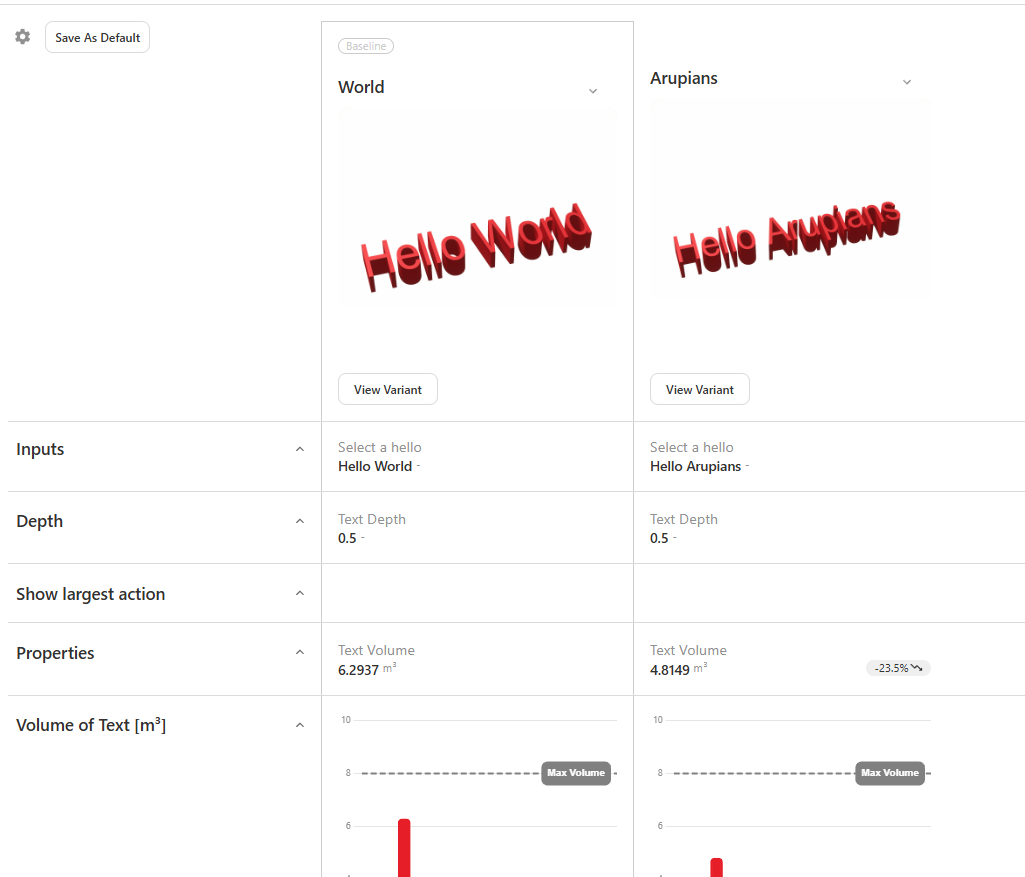
You can see that both the inputs and outputs are grouped below each preset. There is a border around our baseline preset to indicate that is the variant we are comparing to.
-
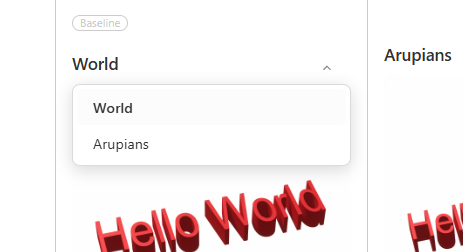
You can switch presets by clicking on the title.
2. Changing the settings.
One of the rows is empty, as actions are not shown. Let's remove this one from the list.
- Click on the settings in the left top.

- Remove the row.
- Click Save as Default if you want to save this change.
- The row has now dissapeared.
Tips for Effective Comparison
- You can also save the order of the comparison as default.
- The Baseline option will always be the first column.
- You can compare a maximum of 5 variants.
Next: 3. Compare in 3d